Showing posts with label LAPTOPS. Show all posts

Wednesday, 9 August 2017

See the new Intel 18-corei9 spec, release date &  price

See the new Intel 18-corei9 spec, release date & price


Intel announce  it new core i9 x-series family  at complex 2017, it comes with more cores than the old core i7 HEDT CPU.
The CPU is available in four cores from 12 to 18-cores being the highest of them all, and aim at targeting the desktop market with more power and speed. 

Core i9 speed and performance 

The core i9 in no doubt is about to steal the attention from the much awaited AMD Threadripper, when it comes to performance the CPU plays an important role, it is determine by how much power and speed it can deliver.

Release date.

The four cores chip are ready to hit the market soon, haven reveal the clock speeds and TDP power estimates, the 12-core Core i9-7920X will launched in August 28, while the 14-, 16-, and 18-core Core i9 chips will be available by September 25. 
Though the 18-core Core i9 chip is coming a little early than it previous date,  it was expected to ship in October. 

Intel has announce that all the clock speed in the core i9 x-series family are unlock and waiting to be overclock. 
Below are the summary of the core counts and clock speed of the core i9 x-series family.

 Core i9 
Core i9-7960X: 2.8GHz, 4.4GHz burst 
(16 cores-32 threads) 
Core i9-7940X: 3.1GHz, 4.4GHz burst
(14 cores-28 threads) 
Core i9-7920X: 3.1GHz, 4.4GHz burst
(12 cores-24 threads) 
Core i9-7900X: 3.3GHz, 4.5GHz burst
(10 cores-20 threads) 

Core i9 extreme edition 
Core i9-7980XE: 2.6GHz, 4.4GHz burst 
(18 cores-36 threads) 

Cost of core i9 x-series chip 

The chipset comes with a starting price of $999 to $1,999 in the order of performance. 
The tCore i9-7980X, extreme edition is said to be the most expensive chip  with a high price tag of $1,999.

Also read 
The core i9 chip is made to carry out intensive multitasking job like virtual reality, gaming etc, with the price tag place on it, it goes to shows the chip is not made for everyone, unless you really need to perform some task listed above. 

Conclusion 

The new Intel core i9 with 18-cores and 36 threads is faster than 10-cores chip found in the corei7 x-series, and can compete with the new AMD Threadripper,if speed and performance is a priority, don't hesitate to get it. 

Tuesday, 8 August 2017

Perform clean boot in Windows 7/8.0 /10

Perform clean boot in Windows 7/8.0 /10

Perform-clean-boot-windows-7-8-10

Most of us are familiar with safe mode in Windows where you restart your computer and start pressing the F8 key on your keyboard, the clean boot state is different from it. 

When you start your computer, several applications and programm run at the background which includes antivirus application, system  utility applications and basic system processes. 
These applications and services tend to cause software conflict when trying to install some applications on your windows computer. 

Also read 

When you experience such errors, the clean boot state is performe to troubleshoot the windows problem, it uses a minimum set of startup program and service to help eliminate software conflict issues that occur while trying to install a program. 
This post will show you how to perform a clean boot on Windows 7,8.0,8.1/10 to resolve conflicting application errors on your  computer. 

How to perform clean boot 

1.Press win+R key on your keyboard to open run, now  type msconfig and click enter to open System Configuration. 
Clean-boot-state-windows

2. On General tab, select start up and untick load start up system. 

3. Now, click on service tab in system configuration and select hide all  Microsoft services, after that click on disable all box. 
Clean-boot-state-windows

4. Click on OK /apply and restart your computer,you've successful put your windows into clean boot state. 

How to troubleshoot software conflict 

Once the computer have restart into a clean boot environment, you can go ahead and install or uninstall the program again. 

How to restart computer back to normal startup

When you're done with the installation process , you can now restart your computer in normal mode. 
Simply press Win+R key to open run, type msconfig and click enter to open System Configuration. 

In general tab, select normal startup,then move to service tab and uncheck hide all Microsoft service, click on the enable box. 

Click on OK/Apply and restart computer back to normal mode. 
If you're still unable to unistall or install a program , you can contact me via email udeme.peter5@gmail.com for your software issues. 
Dell Inspiron 15R (N5110) Beep codes indicator &  common fix

Dell Inspiron 15R (N5110) Beep codes indicator & common fix

Dell-Inspiron-15R-N5110-beep-codes

When you power on a laptop, it goes through a set of diagnostic test to make sure all components are working correctly, the process which it goes through to perform this action is called POST or power on self test. 

Whenever any of the test fails while powering on the laptop is program to notify the user with POST codes which includes beep codes , light codes. 
For  diagnosis of beep codes, you need to restart the laptop if it is already on or listen to the numbers of beep codes to identify where the problem is coming from. 

How to identify Dell Inspiron 15R beep codes 

In other to rectify the issue with beep codes, you need to understand what each beep codes means, below are the list of Dell Inspiron 15R (N5110) Beep Codes. 

Possible number of beep
Description
Possible causes
1
BIOS ROM checksum in progress or failure
System board failure, covers BIOS corruption or ROM errors.
2
No Memory (RAM) detected
Memory or Memory slot failure
3
chipset Error (North and South bridge error, DMA/IMR/Timer error)
Time-Of-Day Clock test failure
Gate A20 failure
Super I/O chip failure
Keyboard controller test failure
System board failure
4
Memory read / write failure
Memory failure
5
Real Time Clock (RTC) power fail
CMOS battery failure
6
Video BIOS test failure
Video subsystem failure
7
CPU Cache test failure
Processor failure
8
LCD

Also read 

It's one thing to identify where the fault comes from and it's another thing to solve the problem, in case they might be too complicated for you, I'll suggest you take your Inspiron 15R (N5110) to a computer engineer for possible fix but if you can handle it then this are the common fix of Inspiron 15R (N5110) beep codes. 

Common fix of Dell Inspiron 15R beep codes 

1 Beep: Replace the motherboard

2 Beeps: clean and reseat the memory or replace the memory.

3 Beeps: Replace the motherboard 

4 Beeps: clean and reseat the memory or replace the memory.

5 Beeps: Replace with new CMOS battery.

6 Beeps: Replace the video card or replace the motherboard 

7 Beeps: Reseat or replace the CPU.

8 Beeps: Reseat the LCD cable or replace the LCD screen.

In the case of replacing with new motherboard, you can contact a laptop engineer to see if there is anything that can be done to fix it, if you're in Lagos, Nigeria you can contact me to check and fix your Dell Inspiron  15R (N5110) laptop for you at affordable price.Reach me via email, udeme.peter5@gmail.com. 

Monday, 7 August 2017

HP ZBook Studio G3 specifications &  price

HP ZBook Studio G3 specifications & price

HP-ZBook-Studio-G3-price

HP ZBook Studio G3 is a powerful workstation laptop build with cool design, the 6th gen Intel corei7 laptop offers a ultra slim design with  Intel Xeon processor and 32 GB of RAM for blazing-fast performance. 


HP ZBook Studio G3 key specifications
 

  • 15.6-inch LED display 
  • 4GB, 8GB, 16GB and 32GB RAM option 
  • 6th Gen Intel corei7, Xeon E3 processor 
  • Intel HD Graphic 530,Intel Iris Pro Graphics, NVIDIA Quadro 
  • Windows 7 professional, Windows 10 Pro, FreeDos 2.0
  • 512GB SSD, up to 1TB HP ZBook Turbo Drive G2

Design and display 

The HP ZBook Studio G3 is a high-end laptop made with aluminum-and-magnesium chassis, it was design to pass the 15 MIL-SPEC-810G tests military durability standard. 

Despite it being a workstation, we have to commend HP for making a slim design out of it, with thickness measured at 0.71 inches and weighs 4.6 pounds making it lighter and slim. 

Also read 

In terms of display, the HP ZBook Studio G3 features a 15.6-inch 3840 x 2160 pixel display 4K UHD DreamColor. 

Performance 

In term of performance, the HP ZBook Studio G3 house a powerful 6th Gen Intel corei7, Xeon E3 processor with up to 32GB RAM. 
The workstation also offer NVIDIA Quadro for graphics with 512GB SSD and support up to 1TB HP ZBook Turbo Drive G2. 
It is considered to be one of the fastest laptop available for users. 

Other spec and features 

HP ZBook Studio G3 has a Bang & Olufsen-tuned speakers to give users quality audio sound, on the left side, it has a Ethernet port, lock slot and two  USB 3.0 port while on the right side there is a two Thunderbolt ports, HDMI port, headphone jack and USB 3.0. 
 
The ZBook Studio G3 has a 0.9-megapixel camera for selfie and Web cam video. 
There is also a fingerprint scanner at the lower-right hand corner of the laptop. 

Price &  availability 

HP ZBook Studio G3 is  available Nigeria, Ghana and Kenya, you can order for it online on Jumia or konga,  price of the workstation starts from $1,999 to $2,999 base on the configuration you want to purchase. 

ZBook Studio G3 price in Nigeria start from 730,000 depending on the configuration and location you're buying from. 

HP ZBook Studio G3 Full specifications

CPU:2.8GHz Intel Xeon E3-1505M v5

Operating system:  Windows 10 Pro

Display: Size 15.6
Native Resolution 3840 x 2160
Size 14.76 x 10.04 x 0.71 in
Weight 4.6 pounds

RAM:32GB
Upgradable to 32GB

Hard Drive Size 512GB SSD
Hard Drive Type PCIe SSD

Graphics Card NVIDIA Quadro M1000M Graphics
Video Memory 4GB

Wi-Fi 802.11ac
Wi-Fi Model Intel 8260 ac (2x2)
Bluetooth Bluetooth 4.1
Mobile Broadband
Touchpad Size 4.3 x 2.9

Ports (excluding USB) Ethernet
HDMI
 Headphone
 Thunderbolt
  USB 3.0
USB Ports 2
Card Slots SD memory reader

Battery:4 cell, 64 WH Li-ion battery 


Friday, 4 August 2017

See how  to prevent laptop broken hinges

See how to prevent laptop broken hinges

Laptop-broken-hinges-repair


There are many laptops brand and models  you can choose from, they come in different size, shape, specifications and design. 
Just like every other electronics, the laptop can develop fault, this might be due to rough  usage, faulty parts or power problem. 

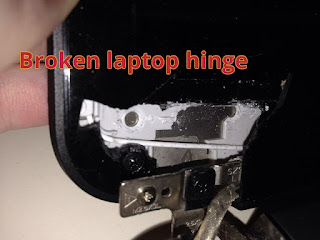
Most of the latest laptop are fragile, apart from the faults listed above, they tend to break easily,  and one of the area it tend to develop this fault is the hinges. 
The likes of hp 15, hp 250,lenovo G50-45, lenovo G50-80 etc are build with fragile carcass. 

This post is going to show you, how you can handle your laptop carefully to prevent the hinges or carcass from breaking off. 
 

All you need to know about laptop broken hinges 


The hinges allows you to close and open the laptop at will, it  hold the screen with screw to prevent it from falling, and is screwed to the bottom and top carcass of your laptop to make you close and open it easily. 

Also read

From factory,  the hing joint is tighten to make the top carcass stay properly at any level you bend it. 
However, this tend to  make the laptop carcass break off since it is not strong enough to handle the force that comes with it when you open and close at random. 

It is advisable you losen the hing joint with a plyer to free the joint a bit, this will help reduce the force that comes with it when you open and close your laptop. 
Take it to a good engineer to help you do the job properly, this will save you the stress of buying a new carcass or hinges. 
 
Apart from this, lastest laptop models comes in slim size , the carcass  are fragile and can easily break off if not handled carefully. Always place the laptop on a flat surface to prevent it from falling and do not place heavy objects on it. 

Haven done what's written above, your laptop hinges and carcass will last longer, it won't pull off the carcass like that of hp 15 or other slim latest laptop with fragile carcass. 

Problem that occurs when the hinges of a laptop is broken. 

When the hinges of the laptop break or pull off from the down carcass, it will develop other issues on the laptop if not repaired as soon as possible, below are the fault that may arise it the issue occurs:

1. The screen will not stand correctly 

2. The screen will break if not handled carefully 

3. The flex (signal cable)  will get spoilt 

Where to repair  laptop broken hinges 

If your laptop hinge is broken and you're looking for where to repair it, you can take it to any good laptop engineer closer to you, and If you're in Lagos, you can contact me to help you fix your laptop hinges at affordable price. 

This is how you prevent your laptop hinges from getting broken, and breaking the laptop carcass. Kindly share the post by using the share buttons. 

Sunday, 30 July 2017

4 Ways to Fix This Copy of Windows is not Genuine Error

4 Ways to Fix This Copy of Windows is not Genuine Error

this-copy-of-Windows-is-not-genuine


If you're not using a purchase version of the Windows  Operating system, you will get the this copy of Windows is not genuine error within some few months of using it. 

When this error appears at the bottom right hand corner of your desktop screen, the desktop background will turn black, and you won't be able to set any custom wallpaper or take screen shots of your desktop. 

This article will show you how to remove this error, below are the list of four methods you can use to solve the problem. 

Method 1. Uninstalling KB971033 Update


If you're experiencing this error, there is a file that recognises your copy of Windows, such file comes with KB971033 update and removing the file will eliminate the issue, you have nothing to worry about, as it won't affect your PC. 

Step 1. Search for control panel, I believe you can find your way to this area on your PC. 

Step 2. To make things easier, change categories to small icons in other to view all the settings in control panel. 

Step 3. Locate windows update and click on it. 

Step 4. When it is open, click on installed updates to view the list of all updates installed on your PC. 

Step 5. Find KB971033 or use the search option to find it if you have a lot of items listed. 

Step 6. Right-click on it and select uninstall, click yes to finish to the process. Restart your PC when you're done, you will not find the error again. 

Also read 

Method 2.Using SLMGR –REARM Command 

If you're still experiencing the issue, you can also try this method.

Step 1.Open command prompt as an administrator, click the window button on your keyboard and type CMD into the search box.
 
Step 2. You will get command prompt, right click on it and select run as administrator. 

Step 3. Enter the following command into the CMD interface. 

SLMGR -REARM 

Should in case you get an error while rendering the SLMGR/REARM command, you can also try SLMGR/REARM. 

Step 4. Restart your PC when the whole process is done, you won't get the error again. 

Note : SLMGR  manages the Windows software license in your PC . While the REARM command, will  reset the license details.


Method 3. Deleting SLUI.EXE


Step 1. Open  file Explorer 

Step 2. Input C:\Windows\System32\ into the search bar. 

Step 3. Search for slui.exe and delete it, there is nothing to worry about, it won't cause any harm to your computer. 

Step 4. Restart your computer and the "this copy of Windows is not genuine" error will be gone. 


Method 4. Windows activator 

This is also one of the easiest way to fix the "this copy of Windows is not genuine"  error, all you have to do is download Windows KMSpico or activator or buy the CD from  the vendor closer to you. 

Step 1. Run the software 

Step 2. Disable your Internet connection and turn off your anti virus. 

Step 3. Click on activate button, and it will activate all Windows products installed on your PC. 

The software supports:

  • Windows 7 Professional/Enterprise
  • Windows 8 Core/Pro/Enterprise
  • Windows 8.1 Core/Pro/Enterprise
  • Windows 8.1.x Core/Pro/Enterprise
  • Windows 10 Home/Pro/Enterprise
  • Microsoft Office 2007
  • Microsoft Office 2010
  • Microsoft Office 2013
  • Microsoft Office 2016

Your Windows will be activated, restart your PC and the "this copy of Windows is not genuine" will be eliminated. 

These are the four methods you can easily use to rectify the issue, let's read your thoughts on the issue and how you solve it if you're currently experiencing the error. Also don't forget to hit the share button. 

Sunday, 30 October 2016

4 tips to prevent your laptop from damage

4 tips to prevent your laptop from damage

How-to-prevent-your-laptop-from-damage


Recently I made a post on how to test a used laptop before purchasing, now the question is how do you take care your laptop to prevent it from getting damage?  While this guide might not give you a lasting solution, it will surely reduce the chance of your PC being faulty. 


1. Do not hibernate your PC 
I repeat do not hibernate, you might be wondering why? When you hibernate your laptop, it saves it current state to your hard drive however doing this put your laptop and hard drive  at risk .

A lot of laptop motherboard have been fried due to hibernating, apart from this, it slows down your laptop which means killing your hard drive softly. 

While some users have never experienced such scenario,its adviceable you save your work and shutdown, doing this will save you the trouble of getting a new hard drive or motherboard. 

2. Stop over charging your the battery   

A lot us are fond of always leaving the laptop plug in to the socket, this is a bad way of charging your laptop. 

Overcharging weakens the battery cell there by reducing the battery life, apart from this you might not be there to quickly unplug your laptop when you see a high voltage electric supply. 

 Always charge your laptop to 100%,when it's fully charged  you have to unplug it from the socket. Even when you're using it, unplug it and plugin  later  when the battery is down. 
Doing this will save you from buying a new motherboard or charger. 

3. Use original charger and chord

The AC adapter is very important to your laptop, without it  there's no way you're going to charge the battery or use the laptop. 

Also read 

A lot of bad charger have lead to a fried motherboard, when power supply is high, it pass through the charger to the laptop and this will definitely affect the motherboard and without the MOBO, no laptop. 

If you know your AC adapter is not good, I'll advice you get a good one.
Now let me show you how to locate an original charger and chord. 

1. The chord is always strong and tick 

2. The charger wire is always strong and tick 

3. It is more  expensive than the new one. 

How to know a new charger 

When you buy use laptop, most users always sell with new charger, simply because it's cheap, however this new charger always led to damage motherboard. 

1. The chord is not tick and it looks shiny 

2. The charger is not tick, it looks shiny 

3. It is cheaper 

4. It get hot, to the entend you will think  it will explode. 

Now, that you've known how to differentiate between an original charger and a new one, check to see if yours is the new one and quickly get the original charger and chord before it does any damage to your laptop  charging IC or fry your motherboard.


4. Keep your laptop away from dust.

The Fan helps to cool the motherboard from too much heat, whether you use it indoor or outdoor, the fan attract dust that occupy the heat sink thereby stopping the heat from the heat sink from going out properly. 

When this happens, your laptop begin to shut down randomly ,apart from that  dust also leads to a faulty keyboard as it get into the small space between the keys. 

Just like you can't stop using your laptop, you can't prevent dust from entering your laptop but you can reduce it. 
Get a small bag which you can put it in after using, after shutting down place a small towel or paper that will cover the keyboard before you close the laptop. 

Also, avoid eating or drinking while using your laptop to prevent small particles of the food or water from entering the keyboard, placing the PC on your bed,couch or rug is also a bad idea. 


Now that you've made to this stage, I'll say congratulations because this guide will definitely help you to reduce the chance of your laptop being faulty. 

It lefts for you to follow up what you've read to avoid getting your laptop fried, be it a new laptop or used one, if it's not properly taken care of it will develop unccessarry fault. 


Do you have any maintenance guide? Kindly share so others can benefit it. 

Tuesday, 11 October 2016

How to test a used laptop before purchasing

How to test a used laptop before purchasing

How-to-test-used-laptop


You must have come across articles telling you things to put into consideration before buying any laptop, what most of these articles  fail to do is let you know what you need to check before buying any used laptop. 

This is only meant for those who have decide to go for used laptop due to the increase in price of a new laptop, you are not allowed to test a new system unless you've paid for it,unlike a used laptop. 

If you've decide to buy a used laptop and still don't know what to look out for before giving the seller your money, then this post will  put you through all the necessary things you need to check before purchasing.


I believe you must have known the purpose of going for a laptop, choosen your brand type, know the best configuration suituatable to you and budget for the laptop. 

1. Check the used laptop screen and flex

 
The screen is one of the important part of the laptop,it is fragile and can get broken easily. 
Apart from that there are other things that can damage the screen. 

You need to watch out for dents, burn in, white dots and inner stains that can never be removed, if you noticed any of this in the screen of the used laptop, you can easily tell the seller to help change it. 

The flex which is also call signal cable connect the screen to the motherboard, without this flex the laptop screen will not display any character, to check if the flex is working well, bend the laptop hinges forward and backward for like 3-5 times. 

If you notice any reddish sign on screen, or screen goes blank then the signal cable is faulty, also note that screen going blank can also be a faulty screen. 


2. Examine the laptop carcass and hinges 


The fact that you're buying a used laptop doesn't mean the carcass should be bad, look out for any body dent or broken parts before purchasing, also make sure the hinges is not loosen or broken as it might damage the screen or the down carcass on the long run. 

3. Check all the USB ports and charging port 


It's adviceable you check all the USB port of the laptop you intend to buy, to test the USB port, an external keyboard or external mouse is the best option to use. 

Connect the external keyboard to the ports and click the window key or caplock button, if the responsd on the laptop then you're good to go, also make sure the USB 3.0 is driven in other for you to test it too. 

The charging port is also important, connect the charger and make sure it's not shaking.

4. Look out for bad keyboard


Whether you want to use your laptop for graphic design, programming or chatting, you'll need a keyboard to perform this task. 

Also read 

In other to make sure the keyboard is working fine ,search for notepad and press all the keys in the on the keyboard to confirm they are working, also check the function keys too expecially the boot menu and set up key. 

5. All drivers must be driven


Drivers act as a translator between the operating system and the hardware, without the drivers being installad built in device like UBS 3.0, Wi-Fi, touchpad and bluetooth will not work. 

You can easily check is the drivers are not yet installed by following this steps:

a. Press the windows + E button
b. System properties 
c.  Device manager 

Look out for any yellow sign, if there's is any then that part is not get driven.

6. Observe the battery life 


This one of the thing some people fail to observe when buying a used laptop, the backup of a system is very important, test the battery by playing a music or quickly watch a 20-25min movie to see how fast it drop. 

Connect a charger and make sure the battery percentage increases and it's  "plug in charging".
If you see "battery not detected or pluging not charging" then request for another battery.

Note that "plug in not charging" might be the charger fault or motherboard, that's why it's adviceable you test the charging.

7. Ask for a better charger,chord and invoice 


The reason  most laptop get damage is due to bad charger, when the charger get burnt it will affect the charging IC of the laptop and in some cases damage the motherboard which may result to buying a new motherboard or laptop. 

Always ask for original charger in other to avoid unnecessary stories. 

I have seen a situation where, an invoice is written without the serial number of the laptop, just writing the laptop configuration or seeing the office address is not enough, the serial number of the laptop is very important. 

Make sure it is written on the invoice ,and it is correct. 
You can locate the serial number at the back of the laptop, inside the battery compartment or setup menu. 

Conclusion

Buying a used laptop doesn't mean you shouldn't go for the best, after all it's your hard earn money, it's advicable you check out for all the above listed points before handling over your money to the seller. 

If you've bought a used system before, you can kindly share your experience with us in the comment box for others to learn from it too. 

Friday, 16 September 2016

List of HP service centers in Nigeria

List of HP service centers in Nigeria

List-of-HP-service-centers-in-nigeria


Hewlett-Packard which if formally known as HP is a well known brand in Nigeria technology market, the company manufactures a lot of electronic product but is known for producing laptops, due to it originality and reability, a lot of Nigerians do opt for the product.

This has made HP set aside service centers in Nigeria to assist many customers who uses their products, users can fix all type of problems relating to their laptops ranging from repairs to warranty issues ,you can also buy HP laptops from any of the centres.

Also read 

HP SERVICE CENTERS IN NIGERIA 


Below are the list of HP service centers available in Nigeria 

LAGOS

IKEJA
1ST Floor, Awolowo House
29/31 Obafemi Awolowo Way
Ikeja, Lagos
Nigeria
Tel: 08149836904


HP SERVICE CENTER
98 Adeniyi Jones,
Ikeja, Lagos.
Nigeria.


VICTORIA ISLAND
Beko Building, Plot 642c
Akin Adesola Street.
Victoria Island,
Lagos.
Nigeri.
Tel: 08166210168


ABUJA

Plot 765, Samuel Ademulegun Street besides Arewa suites.
Masallachi junction, Central Business District
Abuja FCT Nigeria
Tel: 08146063123


PORT HARCOURT

36 Isiokpo St., D/Line
Port Harcourt
Nigeria
Tel: 08184811382 , 084462534

You can easily resolve all problems concerning your HP laptops at the above HP service centers, it's adviceable you buy HP laptops from accredited agents in other to make warranty claims easy.